Hello all,
Have you had deja-vu (on a minute by minute-basis) while working in AutoCAD? You know, where each time you ZOOM in/out/extents, etc., AutoCAD displays a dialog box which asks you if it is "OK to Regen?" If you are on a tight deadline, this can turn into a nuisance real quick.
If you are sick the Autodesk equivalent of a 3 year old always asking you, "Why?". Don't sweat it - it's an easy fix.
At the command prompt, type in REGENAUTO. Then change the setting on ON (or 1). Viola! AutoCAD will regenerate the view without asking you if it's 'OK' each time. I could 'rib' Vista, but I'm not ^_^.
But be warned, this setting is saved in the drawing that you are working in. That means, when you change the setting, that only applies to that particular drawing. If you open another drawing and the REGENAUTO variable is set to OFF (or 0 - zero) for that drawing - It's back to 21 questions.
The good thing is that now you know how to combat the issue when it comes up again.
...thanks for listening...
Monday, January 25, 2010


Wednesday, January 20, 2010
Things happen for good reason
Hello all,
Well, it was bound to happen in this economy. My employer lost their one big account and half of the office got laid-off. I was one of the lucky few that got the axe... The good thing is that I have more time to spend with the kids and shine up the resume. Heck, I may even get to putting my demo reel together. -geek chills run up & down my spine-
So if you need a Project Architect, I know quite a few. But if you need a Jack-of-all-trades, I know only one. He's a bit overweight and has graying hair, but that that never hurt anyone and he knows his stuff ^_^. I will begin posting my online materials and resumes on the blog too. I'm just glad that I completed assembling my new computer system and all the bugs worked out!
I will be spending some more time on the blog as a great perk of my latest status. So I can get my Tips and Tricks for AutoCAD and maybe some Lightwave stuff as well.
...thanks for listening...
Well, it was bound to happen in this economy. My employer lost their one big account and half of the office got laid-off. I was one of the lucky few that got the axe... The good thing is that I have more time to spend with the kids and shine up the resume. Heck, I may even get to putting my demo reel together. -geek chills run up & down my spine-
So if you need a Project Architect, I know quite a few. But if you need a Jack-of-all-trades, I know only one. He's a bit overweight and has graying hair, but that that never hurt anyone and he knows his stuff ^_^. I will begin posting my online materials and resumes on the blog too. I'm just glad that I completed assembling my new computer system and all the bugs worked out!
I will be spending some more time on the blog as a great perk of my latest status. So I can get my Tips and Tricks for AutoCAD and maybe some Lightwave stuff as well.
...thanks for listening...
Wednesday, January 13, 2010
MS Office Advanced: Issue Converting docs to PDF's
Hi there.
Have you ever had that frustrating occurrence when you try to make a PDF from a Microsoft Word doc, and the computer tells you it can't find PDFMaker and asks if you want to reinstall in ...yada, yada... 'What does this error message mean'-land? Note that MS Word and Acrobat Professional are installed in this instance...
Here's a fix:
1. Close all MS Office Apps.
2. In Explorer, go to 'C:\Documents and Settings\Application Data\Microsoft\Templates' (note: this was done in XP).
a. If you see a file named '~$Normal', you have not clo sed all of the MS Office programs. go back to Step 1.
b. Rename Normal.dot to anything else (You can delete this file after this is fixed).
3. Open MS Word
a. In the drop-down menu, click on Help > About. 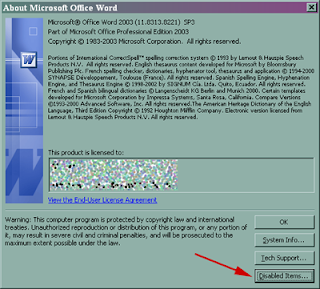
b. This brings up a dialog box, at the bottom, click on 'Disabled Items...'(Button)
c. If 'PDFMaker' is showing up in the dialog box , Re-enable PDFMaker by clicking on the name in the box.
d. Click on the 'Enable' button. 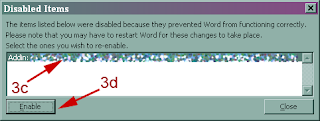
4. Close and open MS Word.
5. Try Word to PDF conversion and see if it works.
This worked on my issue. If this didn't work, I'm sorry - you'll have to keep on searching for the solution...
...thanks for listening...
Have you ever had that frustrating occurrence when you try to make a PDF from a Microsoft Word doc, and the computer tells you it can't find PDFMaker and asks if you want to reinstall in ...yada, yada... 'What does this error message mean'-land? Note that MS Word and Acrobat Professional are installed in this instance...
Here's a fix:
1. Close all MS Office Apps.
2. In Explorer, go to 'C:\Documents and Settings
a. If you see a file named '~$Normal', you have not clo
b. Rename Normal.dot to anything else (You can delete this file after this is fixed).

c. If 'PDFMaker' is showing up in the dialog box
d. Click on the 'Enable' button.

5. Try Word to PDF conversion and see if it works.
This
...thanks for listening...
Thursday, January 7, 2010
Flyer's won big last nite

...thanks for listening...
AutoCAD Advanced: Shape File is missing
Hello all,
Sometimes when you open a CAD drawing, you will receive a dialog box to load a Shape file. Which you may or may not have.
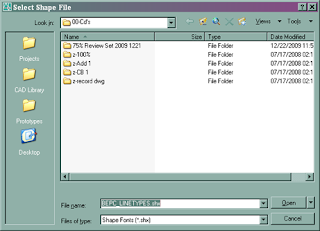
Of course, it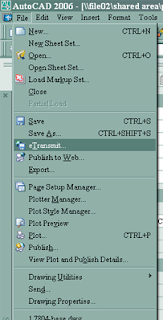 depends on where you get a drawing file from. Note that a shape is used in special linetypes or text or embedded in blocks, etc. If it's from where you work, you can normally go to the person who worked on the file before you and ask them for the shape file and everything is roses. If it's from a 3rd party, you could ask them for it. NOTE: If you are going to send a drawing to a consultant, etc., you could also use the eTransmit tool from the File menu. This is shown at the left. This will include everything associated with the drawing (Xrefs, Linetypes files, etc.) you are sending and we're back to the rose garden of work getting done efficiently.
But we live in the real world, where this seldom happens.
So we have to get rid of every instance of the special linetype in the drawing. Open the drawing and you can use the 'Quick Select...' from the Tools menu, or type qselect at the command prompt (I work ambidextrously -keyboard commands- when I can) and hit enter. From there you can look for shapes, text and delete them, replace them if necessary and move on with your work day. I won't go into detail here - hit the F1 key and search for 'quick select' - how do you think I learned most of my Acad knowledge - schools just use the curriculum's book contents - unless you have a great teacher. Anywho, use 'Quick Select' to root out the offending shape objects. Then you can Purge the drawing to delete the linetypes from the drawing.
You may also try to find the shape file online, but that's a shot in the dark. There is probably more than one version of the shape file you are trying to find. And the referenced shape in the file this drawing was made from may be different from the file you find from some unknown source from the internet. Then you have an improper representation of objects in your drawing and I'm certain your boss is gonna love the craziness when the contractor, client comes back to ask why there is a line of dolphins where the Sanitary Sewer line is supposed to be...
When this doesn't work, it's time to move into the Black Magic portion of figuring out and fixing the problem.
Here's one solution which I have found. Root out blocks and/or objects that are resident in the drawing, but disconnected from the drawing's database. Time to drag & drop.
Purge all items from the problem drawing.
Open a new drawing with nothing in it - I have a saved one just for this purpose. Make sure the layer is set to 0(zero), Purge, CDGPurge if you have it (get it), etc.

Now Restore Down the current drawing so you can move around the drawing sessions inside of the Acad window.
Make sure that the Problem drawing is on top of the new clean drawing. Make sure that you can see the background area of the new clean drawing. Back in the problem drawing, unfreeze, unlock all layers. Hit 'ctrl+a' to select all items in the problem drawing. Left click on any item in the problem drawing - DO NOT click on a grip since that will just modify that object in the problem drawing, and drag your mouse (left button still depressed) over to the new clean drawing and release the left mouse button. If done properly, you will see the objects from the problem drawing in the new clean drawing.
NOTE: Just because you placed them into a new drawing, don't forget that the placement of the items are not in the same place as the old drawing. I'll leave that to you to figure out.
Now in the new clean drawing, do a Purge, CDGPurge, etc. If the case is true, you should see 'Purge-able' objects in the purge window that were not there in the problem drawing. And hopefully they will include blocks (as was my case). Purge 'em out and run another Purge - do as many times as needed. When the special linetypes are no longer part of the drawing, you should see the Linetypes in the Purge window and get that out as well. Why does this happen? I could explain why the sky is blue, but that would not help as to why certain things happen. Acad is just a program made by humans and things go south sometimes, 'nuff said.
Now after you have the placement in the new drawing all figured out and cleaned up. Save the problem drawing as a backup (name it whatever, but make it relevant), and save your new drawing. Why do we not delete the old drawing? If something wasn't brought over correctly, you need some references, etc., you need the old as a backup - that's why they call 'em 'backups'. The next time you open the drawing, you should not be plagued with Acad asking you for a shape file that you do not have.
Time to get Kudos from your boss and that raise you were bucking for. I hope this helps if you had a problem of this kind.
...Thanks for listening...
Sometimes when you open a CAD drawing, you will receive a dialog box to load a Shape file. Which you may or may not have.

Of course, it
 depends on where you get a drawing file from. Note that a shape is used in special linetypes or text or embedded in blocks, etc. If it's from where you work, you can normally go to the person who worked on the file before you and ask them for the shape file and everything is roses. If it's from a 3rd party, you could ask them for it. NOTE: If you are going to send a drawing to a consultant, etc., you could also use the eTransmit tool from the File menu. This is shown at the left. This will include everything associated with the drawing (Xrefs, Linetypes files, etc.) you are sending and we're back to the rose garden of work getting done efficiently.
But we live in the real world, where this seldom happens.
So we have to get rid of every instance of the special linetype in the drawing. Open the drawing and you can use the 'Quick Select...' from the Tools menu, or type qselect at the command prompt (I work ambidextrously -keyboard commands- when I can) and hit enter. From there you can look for shapes, text and delete them, replace them if necessary and move on with your work day. I won't go into detail here - hit the F1 key and search for 'quick select' - how do you think I learned most of my Acad knowledge - schools just use the curriculum's book contents - unless you have a great teacher. Anywho, use 'Quick Select' to root out the offending shape objects. Then you can Purge the drawing to delete the linetypes from the drawing.
You may also try to find the shape file online, but that's a shot in the dark. There is probably more than one version of the shape file you are trying to find. And the referenced shape in the file this drawing was made from may be different from the file you find from some unknown source from the internet. Then you have an improper representation of objects in your drawing and I'm certain your boss is gonna love the craziness when the contractor, client comes back to ask why there is a line of dolphins where the Sanitary Sewer line is supposed to be...
When this doesn't work, it's time to move into the Black Magic portion of figuring out and fixing the problem.
Here's one solution which I have found. Root out blocks and/or objects that are resident in the drawing, but disconnected from the drawing's database. Time to drag & drop.
Purge all items from the problem drawing.
Open a new drawing with nothing in it - I have a saved one just for this purpose. Make sure the layer is set to 0(zero), Purge, CDGPurge if you have it (get it), etc.

Now Restore Down the current drawing so you can move around the drawing sessions inside of the Acad window.
Make sure that the Problem drawing is on top of the new clean drawing. Make sure that you can see the background area of the new clean drawing. Back in the problem drawing, unfreeze, unlock all layers. Hit 'ctrl+a' to select all items in the problem drawing. Left click on any item in the problem drawing - DO NOT click on a grip since that will just modify that object in the problem drawing, and drag your mouse (left button still depressed) over to the new clean drawing and release the left mouse button. If done properly, you will see the objects from the problem drawing in the new clean drawing.
NOTE: Just because you placed them into a new drawing, don't forget that the placement of the items are not in the same place as the old drawing. I'll leave that to you to figure out.
Now in the new clean drawing, do a Purge, CDGPurge, etc. If the case is true, you should see 'Purge-able' objects in the purge window that were not there in the problem drawing. And hopefully they will include blocks (as was my case). Purge 'em out and run another Purge - do as many times as needed. When the special linetypes are no longer part of the drawing, you should see the Linetypes in the Purge window and get that out as well. Why does this happen? I could explain why the sky is blue, but that would not help as to why certain things happen. Acad is just a program made by humans and things go south sometimes, 'nuff said.
Now after you have the placement in the new drawing all figured out and cleaned up. Save the problem drawing as a backup (name it whatever, but make it relevant), and save your new drawing. Why do we not delete the old drawing? If something wasn't brought over correctly, you need some references, etc., you need the old as a backup - that's why they call 'em 'backups'. The next time you open the drawing, you should not be plagued with Acad asking you for a shape file that you do not have.
Time to get Kudos from your boss and that raise you were bucking for. I hope this helps if you had a problem of this kind.
...Thanks for listening...
Wednesday, January 6, 2010
Lightwave 3d Model: Bee
Hello all.
Here I have posted some wire frames of a Bee I modeled for my animated short...

Here's another shot of the detail on the legs.

Here's a final shot with FiberFX in place for the 'fur'. Note the 'Flame Job' on the Thorax. You know, I'd be lying if I said that I don't think of Cheech Marin's line in 'Cars' whenever I say, "Flame Job." ^_^

...Thanks for listening...
Here I have posted some wire frames of a Bee I modeled for my animated short...

Here's another shot of the detail on the legs.

Here's a final shot with FiberFX in place for the 'fur'. Note the 'Flame Job' on the Thorax. You know, I'd be lying if I said that I don't think of Cheech Marin's line in 'Cars' whenever I say, "Flame Job." ^_^

...Thanks for listening...
Tuesday, January 5, 2010
3d Animation: Over the Top
...just getting things posted in the order of aged works...
Here's another one from the 10 second club. I'm pretty certain if you look up the phrase 'Over the Top', you'll see this animation linked somewhere nearby. No matter, it's history and you know once you finish something, you always say, "I should/should not have done this here/there". The Lightwave character is from the Jonny Gordon books as well. See post below for a link to the books.
...thanks for listening...
Here's another one from the 10 second club. I'm pretty certain if you look up the phrase 'Over the Top', you'll see this animation linked somewhere nearby. No matter, it's history and you know once you finish something, you always say, "I should/should not have done this here/there". The Lightwave character is from the Jonny Gordon books as well. See post below for a link to the books.
...thanks for listening...
Subscribe to:
Posts (Atom)
